
Setting up Hostinger Hosting or web hosting can seem complicated when you are creating a website for the first time. You may need to choose a hosting plan, register or connect a domain, configure your website, install WordPress, enable security features, create email accounts, and make sure everything is working before you publish. The good news is that the process does not have to be difficult.
Hostinger provides a simplified hosting dashboard, commonly referred to as hPanel, through which users can manage hosting, domains, websites, email, databases, backups, and other services. Its current hosting offerings also include WordPress, an AI website builder, SSL, backups, CDN options, and other website-management features, although the exact features depend on the plan and market.
This guide explains how to set up Hostinger hosting step by step, but it goes further than simply telling you which buttons to click.
Written by Mukthar Salam
Last reviewed: October 2026
You will learn:
- What web hosting actually does
- How hosting differs from a domain name
- Which type of hosting may suit your website
- How to choose a Hostinger plan
- How to register or connect a domain
- How to complete the initial setup
- How to install WordPress
- How to configure SSL and security
- How to configure backups
- How to create a professional website structure
- What to check before launching
- Common hosting mistakes beginners make
- What to consider before renewing your hosting
- How to move your domain or website elsewhere if necessary
- How to use your website as a foundation for business growth
The goal is not simply to get a website online. The goal is to establish a website that is secure, maintainable, useful to visitors, and capable of growing with your needs.
What Is Web Hosting?
Web hosting is a service that provides the server infrastructure needed to make a website accessible on the internet.
A website consists of files, databases, images, scripts, stylesheets, and other resources. Those resources need to be stored somewhere that can respond when someone requests your website.
When a visitor enters your domain name into a browser, several things happen behind the scenes:
- domain is resolved through the Domain Name System (DNS).
- browser identifies the appropriate server.
- server receives the request.
- Required website resources are delivered.
- browser assembles those resources into the page the visitor sees.
A useful analogy is to think of an online business as a physical shop:
- Your website = the shop
- Your domain name = the shop’s street address
- Web hosting = the physical infrastructure where the shop operates
- Your website files and database = the products, shelves, records, and equipment inside the shop
A domain alone does not create a functioning website. Likewise, hosting without a domain does not automatically give your business a memorable web address.
Domain Name vs. Web Hosting
One of the most common mistakes beginners make is treating a domain and hosting as the same thing. They are different services.
A domain name
A domain is the address people use to reach your website. Examples include:
- yourbusiness.com
- yourbrand.net
- example.org
Web hosting
Hosting provides the infrastructure where your website’s files and related data are stored and served.
For example, if you build a WordPress website, your hosting environment may store:
- WordPress files
- Themes
- Plugins
- Images
- Uploaded documents
- Website databases
- Configuration files
You can purchase your domain and hosting from the same company or use different providers. The important thing is that the domain’s DNS configuration correctly points visitors toward the server hosting your website.
What Types of Web Hosting Are Available?
Before purchasing a plan, understand the basic hosting categories.
Shared Hosting
Shared hosting places multiple websites on the same underlying server environment. Its main advantage is affordability and simplicity.
It can be suitable for:
- Personal blogs
- Small business websites
- Portfolios
- New content websites
- Low-to-moderate traffic projects
The trade-off is that you have fewer resources and less control than with more advanced hosting environments.
Cloud Hosting
Cloud hosting uses infrastructure distributed across multiple servers or resources rather than relying on a traditional single-server arrangement.
Depending on the provider and configuration, cloud hosting can provide greater resource availability and scalability than basic shared hosting.
It may be appropriate when:
- Your website is receiving increasing traffic
- Your application requires additional resources
- You need more flexibility than basic shared hosting provides
However, “cloud” does not automatically mean unlimited performance. Always examine the actual resources, limits, and pricing attached to the plan.
VPS Hosting
A Virtual Private Server gives you a more isolated environment and greater control over server resources.
VPS hosting is generally more appropriate for:
- Developers
- Agencies
- Applications with specific server requirements
- Websites requiring more control
- Businesses with technical staff
The trade-off is complexity. A VPS can require considerably more technical knowledge than managed shared hosting. For a beginner building a normal WordPress business website, starting with a VPS simply because it sounds more powerful is usually unnecessary.
Why Hosting Quality Matters
Hosting is not the only factor that determines whether a website succeeds, but it forms part of the technical foundation.
Poor hosting can create problems involving:
- Website availability
- Loading performance
- Resource limits
- Security
- Backups
- Technical support
- Scalability
- Recovery after an incident
Performance is particularly important because users expect websites to respond quickly.
Google’s current documentation describes Core Web Vitals as measurements covering loading performance, responsiveness, and visual stability. Google recommends good Core Web Vitals as part of providing a good experience, while also making clear that there is no single page-experience signal that guarantees search visibility.
This distinction matters. Good hosting can support a technically healthy website, but hosting alone does not guarantee Google rankings.
Content quality, search relevance, technical SEO, site architecture, links, user experience, and many other factors remain important.
Why Consider Hostinger Hosting?
Hostinger is one of the hosting providers that offers beginner-oriented hosting products, WordPress hosting, website-building tools, domains, email, SSL, backups, and other website-management services.
Its current hosting page lists features such as:
- SSL
- Domain registration
- Backups
- WordPress
- Website-building tools
- CDN options
- AI-assisted website tools
- Customer support
The precise combination depends on the plan and region. That last point is important. Do not choose a hosting plan based only on a headline price or a feature advertised on a general review website.
Check the current plan page for your country before purchasing because pricing, promotional periods, renewal rates, included resources, and available features can change.
Hostinger Hosting: What Should You Evaluate?
Instead of asking only, “Is Hostinger good?”, evaluate the service against your actual requirements. Consider these factors:
1. Initial price
Promotional pricing can make a hosting plan appear inexpensive during the first subscription period.
2. Renewal price
The price you pay when the initial term expires can be substantially different.
3. Number of websites
If you expect to operate several websites, check how many websites your selected plan supports.
4. Storage
Check the actual storage allocation and whether it is SSD or NVMe storage where applicable.
5. Backups
Determine whether backups are included, how frequently they are created, and how long they are retained.
6. Email
If you want professional addresses such as hello@yourbusiness.com, check the plan’s email allowance.
7. Performance resources
Look beyond storage. CPU, RAM, PHP workers, bandwidth/resource limits, and other infrastructure constraints can affect how a website behaves under load.
8. WordPress support
If your website will use WordPress, examine the available WordPress management features.
9. Customer support
Check what support channels are available and whether support is offered continuously.
10. Migration options
If you already have a website, determine whether migration assistance or migration tools are available. This approach is more useful than simply choosing a plan because it has the highest number of features.
Hostinger Hosting Plans: How to Think About Your Choice
Hostinger’s current plans vary by market, and its official Nigeria page currently shows different pricing and resource allocations from its global page. For example, the Nigeria page lists Single and Premium plans with different website, storage, backup, email, and support allocations.
Because promotional prices and plan specifications can change, check the official pricing page immediately before purchasing rather than relying on an old article’s price table. More importantly, select the plan according to your project.
Entry-Level Plan
An entry-level plan can make sense when you are:
- Building your first website
- Running a simple portfolio
- Testing an idea
- Starting a small personal blog
- Expecting relatively modest traffic
The important question is whether the plan has enough resources for your expected use.
Mid-Level Plan
A higher shared-hosting plan may make more sense when you:
- Need multiple websites
- Run a growing content site
- Operate a small business website
- Need more storage
- Want additional backup or performance capabilities
Higher-Resource Hosting
Consider more powerful hosting when:
- Your traffic has grown substantially
- application requires additional resources
- website regularly approaches resource limits
- You need greater technical control
- Your business depends heavily on website availability and performance
Do not upgrade simply because a larger plan sounds more professional. Upgrade because your website has a measurable requirement.
How to Set Up Hostinger Hosting Step by Step
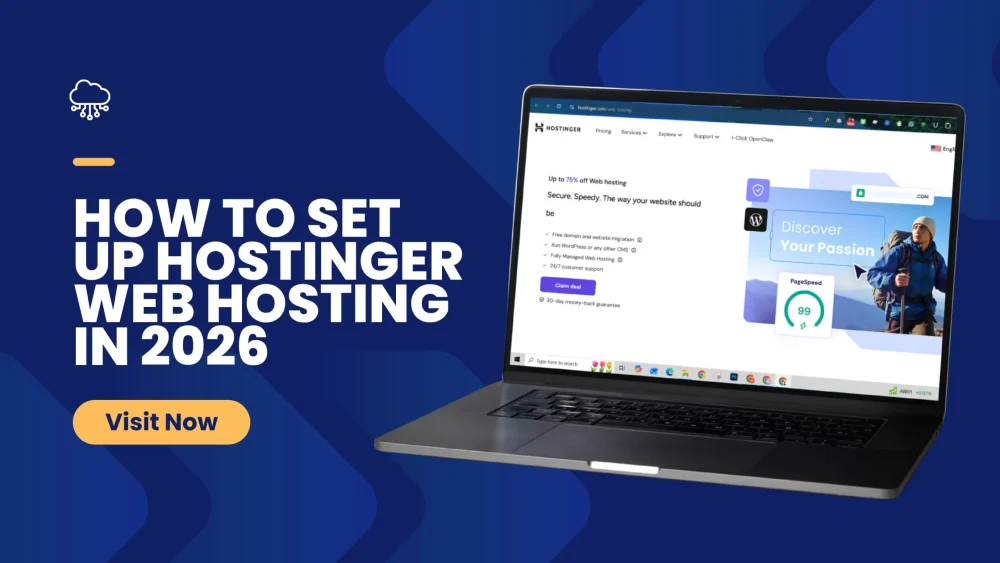
Now let’s walk through the actual setup process.
Step 1: Create Your Hostinger Account
Start by visiting the official Hostinger website and selecting the hosting service appropriate for your project. You can then create an account and proceed through the purchase process.
Before paying, review:
- Subscription length
- Promotional price
- Renewal price
- Included services
- Number of websites
- Storage
- Backup frequency
- Email allowance
- Domain conditions
- Refund terms
Hostinger currently advertises a 30-day money-back guarantee on its hosting page, but you should review the applicable terms before purchase.
Step 2: Choose Your Hosting Plan
Choose your plan according to what you are actually building.
Example decision process
Simple personal website
→ Start with an entry-level plan if its resources are sufficient.
Small business website
→ Consider a plan with additional resources, backups, email, and room for growth.
Content-heavy website
→ Pay particular attention to storage, performance resources, backups, and scalability.
Online store
→ Consider resource requirements, backups, security, database performance, payment integrations, and expected traffic.
Web application
→ Compare shared hosting against cloud or VPS options based on the application’s technical requirements.
The cheapest plan is not automatically the cheapest solution in the long run if you outgrow it immediately.
Step 3: Register a New Domain or Connect an Existing One
During setup, Hostinger may give you the option to register a new domain. If you already own a domain, you can generally connect it to the hosting account instead.
When choosing a domain, consider:
- Brand relevance
- Memorability
- Spelling
- Length
- Legal or trademark considerations
- The extension appropriate for your audience
Do not assume that adding keywords to a domain automatically improves SEO. A strong brandable domain that people can remember and type correctly can be more useful than an awkward keyword-heavy domain.
Step 4: Understand Domain Transfer Restrictions
If you already have a domain registered elsewhere and want to transfer it to Hostinger, understand the applicable domain-transfer rules before starting.
For many generic top-level domains governed by ICANN policies, a domain transfer requires an Auth-Code, also called an authorization or transfer code. ICANN explains that the code is created by the registrar and is required to transfer a domain between registrars.
There can also be restrictions associated with:
- Recent domain registration
- Previous domain transfers
- Changes to registrant information
- Registrar lock status
ICANN notes that a domain may be prevented from transferring within 60 days of initial registration or certain registrant-information changes.
Therefore, don’t assume that every domain can be transferred immediately. If the domain is critical to your business, verify its transfer status before changing registrant information or beginning the transfer.
Step 5: Complete Payment
After selecting the hosting plan and domain, review the order carefully.
Pay particular attention to the difference between the initial promotional price and the renewal price. This is one of the most important considerations when comparing hosting services. A low introductory monthly equivalent does not necessarily represent the long-term cost.
Also check:
- Billing period
- Automatic renewal
- Optional add-ons
- Domain renewal costs
- Email renewal terms
- Backup-related conditions
- Refund policy
Take a screenshot or save the order confirmation for your records.
Step 6: Open hPanel
After your purchase is complete, access your Hostinger account and open the hosting management dashboard. Hostinger calls its custom hosting dashboard hPanel.
The dashboard is designed to centralize common website-management tasks.
Depending on your plan, you may use it to manage:
- Domains
- Websites
- WordPress
- Databases
- Files
- Backups
- Security
- Performance
- DNS
- Other hosting services
The exact interface can change over time, so menu names may not always be identical to those shown in older tutorials.
Step 7: Connect Your Domain
If you registered your domain through Hostinger as part of the setup process, much of the connection may be handled during onboarding.
If your domain is registered elsewhere, you will need to configure the appropriate DNS records or nameservers according to Hostinger’s current instructions. Do not change DNS records randomly.
DNS changes can affect:
- Website availability
- Verification services
- Subdomains
- Other applications connected to your domain
Before changing DNS, record your existing configuration. This is especially important for an established business domain with working email.
Step 8: Install WordPress
If WordPress is your chosen website platform, Hostinger provides an installation workflow through its hosting environment.
The basic process is:
- Open the website management area.
- Select the WordPress installation option.
- Enter your website information.
- Create your administrator credentials.
- Select the domain.
- Complete the installation.
Your exact screen may differ depending on Hostinger’s current interface.
Create a strong administrator password
Do not use:
- Your business name
- Your domain name
- admin123
- Your date of birth
- Simple dictionary words
Use a unique, strong password and enable additional account security where available. Never publish your WordPress administrator credentials or reuse them on another service.
Step 9: Enable HTTPS and Confirm SSL
An SSL/TLS certificate allows your website to use HTTPS. You can recognize an HTTPS website by an address beginning with: https://
HTTPS protects data transmitted between a visitor’s browser and the website through encryption.
Hostinger currently advertises free SSL certificates with its hosting packages, although the exact conditions should be checked against your selected plan.
After activating SSL, test:
- https://yourdomain.com
- Important pages
- Images
- Forms
- Login pages
- Redirects
Make sure your website consistently loads over HTTPS rather than presenting mixed-content warnings.
Step 10: Configure Backups
Backups are one of the most important parts of website administration. A website can break because of:
- Plugin conflicts
- Theme changes
- Human error
- Malware
- Database problems
- Failed updates
- Accidental deletion
- Server incidents
Your hosting provider’s backup system should not be treated as your only backup strategy for a critical business website. A better approach is to maintain independent copies where appropriate.
For example:
- Website Hosting backup
- → Independent backup
- → Important business data stored separately
The precise backup frequency and retention period depend on your hosting plan. Hostinger’s current plan information shows different backup provisions across its plans.
Before relying on a backup system, learn how restoration works. A backup that cannot be restored when needed is not a complete recovery strategy.
Step 11: Configure Your Website
Once WordPress is installed, avoid immediately installing dozens of plugins. Start with the fundamentals.
Create the core pages
A business website will typically need pages such as:
- Home
- About
- Contact
- Services or Products
- Blog
- Privacy Policy
- Terms and Conditions where appropriate
- Affiliate Disclosure where applicable
The exact pages depend on the nature of the business.
Choose a Suitable Theme
Choose a theme that:
- Works well on mobile
- Is regularly maintained
- Supports your required features
- Does not contain unnecessary complexity
- Performs reasonably well
- Comes from a trustworthy source
Do not choose a theme solely because it contains hundreds of visual effects. A simple website that communicates clearly can be more useful than a visually complicated website that loads slowly.
Step 12: Install Only Necessary Plugins
Plugins can extend WordPress functionality, but every additional plugin creates another piece of software that needs to be maintained.
Typical categories include:
- SEO
- Security
- Backups
- Forms
- Caching/performance
- Analytics
- Ecommerce
- Image optimization
Avoid installing several plugins that perform essentially the same function.
For example, you generally do not need multiple plugins independently handling the same caching, SEO, or security task. Keep your plugins updated and remove software you no longer use.
Step 13: Create Professional Email Accounts
If your hosting plan includes email, consider creating an address using your domain. For example:
- hello@yourbusiness.com
- support@yourbusiness.com
- sales@yourbusiness.com
A domain-based email address can present a more professional identity than relying entirely on a free consumer email account.
However, email configuration is separate from simply hosting your website. If you use an external email provider, be careful when modifying DNS records so that you do not accidentally disrupt existing email delivery.
Step 14: Test Your Website Before Launching
Do not assume that the website works simply because WordPress installed successfully. Perform a basic launch audit.
Test navigation
Click:
- Logo
- Main menu
- Footer links
- Buttons
- Internal links
Test forms
Submit:
- Contact form
- Newsletter form
- Lead-generation forms
Make sure submissions actually reach the intended destination.
Test mobile display
Check the site on:
- Smartphone
- Tablet
- Desktop
Test HTTPS
Make sure important pages load securely.
Test images
Check that images:
- Load correctly
- Have appropriate dimensions
- Are not unnecessarily huge
Test page speed
Use appropriate performance tools and check real-world performance rather than obsessing over a single numerical score. Google recommends monitoring Core Web Vitals through Search Console and related tools.
Hostinger Hosting and Website Performance

Hosting is one component of website performance, but it is not the whole story. A slow website can also result from:
- Oversized images
- Poorly written code
- Excessive plugins
- Unoptimized databases
- Heavy themes
- Third-party scripts
- Poor caching configuration
- Excessive advertising
- Poorly configured fonts
- Inefficient page builders
Therefore, changing hosting providers may not fix a performance problem caused by the website itself.
Google’s documentation specifically recommends focusing on an overall good page experience rather than treating Core Web Vitals as a guarantee of search rankings.
A practical performance workflow is: Measure → Identify bottleneck → Fix → Measure again. Do not upgrade your hosting plan before determining whether hosting is actually the bottleneck.
Security Practices You Should Follow
No hosting provider can eliminate every security risk. Website security is a shared responsibility between the hosting provider and the website owner.
After setting up your site:
Use strong credentials
Protect both your hosting account and WordPress administrator account.
Enable additional account protection
Use available multi-factor authentication or equivalent security controls.
Keep WordPress updated
Update:
- WordPress core
- Themes
- Plugins
But create a reliable backup and test important updates appropriately.
Remove unused software
Unused plugins and themes increase maintenance requirements.
Limit administrator access
Do not give administrator privileges to every person who needs to publish an article. Create appropriate user roles.
Monitor unusual activity
Pay attention to:
- Unexpected users
- Unknown plugins
- Suspicious redirects
- Unrecognized files
- Unexpected password resets
- Sudden website changes
Security should be an ongoing process rather than a one-time installation task.
Pros and Cons of Hostinger Hosting
A useful review should explain both advantages and limitations.
Potential Advantages
Beginner-oriented management
The hPanel interface is designed to simplify common hosting tasks.
Broad website options
Hostinger offers products covering domains, WordPress, website builders, email, and different hosting environments.
Included services
Depending on the plan, users can receive services such as SSL, backups, email, CDN capabilities, and other tools.
WordPress support
WordPress installation and management are integrated into the hosting workflow.
Different levels of hosting
Users can move beyond basic shared hosting when their technical or resource requirements change.
Potential Limitations
Promotional pricing can obscure long-term cost
Always compare the initial price with the renewal price.
Plan features differ
Do not assume that every Hostinger customer receives the same resources.
Shared hosting has resource limitations.
A basic shared hosting environment is not equivalent to a dedicated server.
Website performance remains your responsibility.
Good hosting cannot compensate for an overloaded website, poorly optimized images, excessive plugins, or inefficient code.
No provider is appropriate for every project.
A highly technical application may require infrastructure that is different from what a beginner WordPress website needs.
This is why the right question is not: “Is Hostinger the best hosting provider?”
A more useful question is: “Does this hosting plan provide the infrastructure, features, support, and cost structure my website actually requires?”
Common Mistakes to Avoid
Mistake 1: Choosing Only on the Introductory Price
A low promotional price can be attractive, but your website may remain online for years. Calculate the total cost over the period you realistically expect to operate the website.
Mistake 2: Ignoring Renewal Pricing
Before purchasing, find the renewal price. This is particularly important for businesses that want predictable operating costs.
Mistake 3: Buying More Resources Than You Need
A new five-page business website does not necessarily require an expensive high-resource hosting environment. Start according to your actual requirements and upgrade when evidence shows that you need more capacity.
Mistake 4: Buying Too Little for a Business-Critical Website
The opposite problem is also possible. If your website generates leads, processes orders, or receives substantial traffic, an extremely limited plan may create unnecessary constraints.
Mistake 5: Treating Hosting as an SEO Strategy
Hosting can affect technical performance and availability, but hosting itself is not an SEO strategy. Search visibility depends on much more than server selection.
Google states that its ranking systems evaluate many signals and that page experience is only one part of the overall picture.
Mistake 6: Ignoring Backups
Never assume that because your hosting company provides backups, you never need to think about recovery. Understand:
- What is backed up?
- How often?
- How long is it retained?
- Can you restore individual files?
- Can you restore the database?
- Could you download an independent copy?
Mistake 7: Installing Too Many Plugins
Every plugin adds maintenance requirements. Install software because your website needs the functionality—not simply because the plugin exists.
Mistake 8: Forgetting About Domain Ownership
Keep accurate records of:
- Domain registrar
- Registrant information
- Renewal date
- Account credentials
- DNS configuration
- Transfer authorization information
A website can be functioning perfectly while its domain registration is approaching expiration.
How to Know When You Should Upgrade Your Hosting
Do not upgrade simply because your competitor uses a larger hosting plan. Look for evidence.
Consider an upgrade when you consistently experience:
- Resource-limit warnings
- Performance problems linked to server resources
- Increased traffic
- More demanding applications
- Larger databases
- More websites on the account
- Greater business dependency on the website
Before upgrading, identify the actual bottleneck.
For example:
- Problem: Website loads slowly.
- Possible cause: Large images.
- Solution: Optimize images.
Not:
- Problem: Website loads slowly.
- Assumption: Buy a more expensive hosting plan.
Good website management begins with diagnosis.
What to Do After Your Website Goes Live
Getting your website online is only the beginning. Your post-launch checklist should include:
Technical
- Confirm HTTPS
- backups
- DNS
- Test forms
- Test mobile layout
- Check broken links
- Monitor performance
Search
- Connect Google Search Console
- Submit your sitemap where appropriate
- Check indexing
- Monitor coverage problems
- Review Core Web Vitals
- Improve internal linking
Content
Publish useful content that genuinely answers your audience’s questions. Avoid producing dozens of shallow articles simply to create the appearance of activity.
Security
- Keep software updated
- Review administrator accounts
- Monitor suspicious activity
- Maintain backups
Business
Track:
- Leads
- Sales
- Contact-form submissions
- Organic traffic
- Conversion rates
- Returning visitors
The purpose of hosting is ultimately to support a useful website—not simply to keep files on a server. Explore a complete guide to converting website traffic into customers.
How to Use Your Website to Build a Business

Once your website is operational, it can support different business models.
Affiliate Marketing
You can publish useful content that helps readers understand products and services and, where appropriate, use disclosed affiliate relationships. The key is to provide genuine information rather than turning every article into a sales pitch. Explore more in this affiliate marketing guide.
Digital Products
A website can also support products such as:
- Ebooks
- Templates
- Checklists
- Courses
- Workbooks
- Software
- Digital downloads
Your website can provide the educational content that attracts visitors while your product provides a deeper solution. Discover how to create digital products.
Services
A website can function as a professional presence for:
- Consulting
- Design
- Writing
- SEO
- Development
- Marketing
- Coaching
- Other professional services
In this model, the website helps prospective customers understand what you offer and provides a way to contact you.
Ecommerce
If you intend to sell physical products, hosting can support an ecommerce platform such as WooCommerce or another compatible solution. However, ecommerce websites have additional requirements involving:
- Payment processing
- Product management
- Security
- Backups
- Inventory
- Order management
- Customer data
- Performance
Choose infrastructure based on those requirements rather than treating an ecommerce store like a simple five-page brochure website.
A Practical Hostinger Setup Checklist
Use this checklist before considering your website fully configured.
Account
- Create hosting account
- Confirm subscription period
- Record renewal price
- Enable available account security
- Save purchase documentation
Domain
- Register or connect domain
- Confirm ownership information
- Check renewal date
- Configure DNS correctly
- Keep transfer information secure
Website
- Install WordPress or selected platform
- Configure administrator account
- Select a maintained theme
- Install only necessary plugins
- Create core pages
Security
- Enable HTTPS
- Confirm SSL
- Use strong passwords
- Enable additional account protection
- Configure backups
- Keep software updated
Performance
- Optimize images
- Avoid unnecessary plugins
- Test mobile performance
- Test desktop performance
- Monitor Core Web Vitals
- Investigate actual bottlenecks
Launch
- Test contact forms
- navigation
- Check broken links
- Check important redirects
- Verify indexing configuration
- Connect analytics and Search Console where appropriate
Frequently Asked Questions
Is Hostinger good for beginners?
Hostinger provides a beginner-oriented management environment, including hPanel and guided website setup features. Its hosting products also include WordPress and website-building options.
Whether it is appropriate for you depends on the website you are building, the resources you need, your budget, and the plan’s specific limitations.
Is Hostinger hosting free?
No. Hostinger is a paid hosting provider.
It may advertise promotional introductory prices, but customers should distinguish between the promotional price and the applicable renewal price. Always check the current price for your country before purchasing.
Does Hostinger support WordPress?
Yes. Hostinger currently offers WordPress as part of its website-building and hosting ecosystem. The exact WordPress-related features available to you depend on the selected product and plan.
Does Hostinger provide SSL?
Hostinger currently advertises free SSL certificates with its web-hosting packages. Check the current plan terms for the product you intend to purchase.
Does Hostinger provide backups?
Yes, backup functionality is available, but the frequency and other details differ between plans.
For example, Hostinger’s current plan information shows different backup provisions across its offerings. Always verify the backup frequency and retention period of your specific plan.
Can I transfer my domain away from Hostinger?
In general, domain registrants have the right to transfer eligible domain names between registrars, subject to applicable policies and restrictions.
For domains governed by ICANN’s transfer policies, an authorization code may be required, and certain 60-day restrictions can apply. Before transferring an important business domain, check its current status and the applicable registrar rules.
Is a 60-day domain transfer restriction always applicable?
Not in every situation or for every domain in the same way. ICANN’s rules include restrictions relating to initial registration, previous transfers, and certain changes to registrant information. Some registrar-level options may also apply.
Therefore, check the specific domain and registrar before assuming that a transfer is immediately possible.
Can I use Hostinger for an online store?
Yes, Hostinger currently advertises ecommerce capabilities on its hosting plans.
However, an ecommerce website requires more planning than a simple informational website. Consider payment processing, security, backups, database requirements, inventory, product images, traffic, and customer-data protection before choosing your plan.
Will Hostinger make my website rank higher on Google?
No hosting provider can guarantee higher Google rankings. Hosting can contribute to the technical foundation of a website, including performance and availability, but search rankings depend on many other factors.
Google explains that its ranking systems use many signals and that good page experience does not guarantee top rankings.
Should I choose the cheapest Hostinger plan?
Not necessarily. Choose the least expensive plan that comfortably satisfies your current requirements and has a reasonable path for growth.
If you are building a simple website, an entry-level plan may be sufficient. If you are running an ecommerce store, multiple websites, or a growing content business, you may need additional resources.
Final Thoughts
Setting up web hosting is not simply a matter of purchasing the cheapest available plan and installing WordPress. A reliable website setup requires several connected decisions: Hosting → Domain → DNS → Website platform → Security → Backups → Performance → Content → Monitoring
Hostinger can simplify many of these tasks through its hosting dashboard and integrated website tools. Its current offerings include domains, SSL, backups, WordPress, website-building tools, email, and other services, with the exact combination depending on the plan and market.
But the provider is only part of the equation. The more important decision is whether the specific hosting plan matches your website’s requirements. Before purchasing, compare the resources, promotional price, renewal price, backup arrangements, website limits, email provisions, performance capabilities, and support options.
After purchasing, configure your domain carefully, enable HTTPS, establish reliable backups, secure your administrator accounts, install only the software you need, and test the website before sending visitors to it.
And once the site is live, treat hosting as infrastructure—not the business itself. Your long-term results will depend on what you build on that infrastructure: the usefulness of your content, the quality of your products or services, your ability to attract the right visitors, your security practices, and the experience you provide.
A well-configured hosting account gives you the foundation. What you build on that foundation is what ultimately matters.
About the Author
Mukthar Salam
He is the founder and author of MarketLiftAI. Mukthar is passionate about Business and Technology, since 2023 he has written over 100 articles covering AI Tools, Business Software, SaaS Platforms, Internet Services, Cybersecurity, Digital Marketing, Cloud Computing, Business Finance Tools and Online Business Services. Over the past 3 years. Mukthar has been building, analyzing, and Maintaining Websites for over 3 years and also shares his wealth of knowledge and experience on MarketLiftAI.